 MIDI-NOX
User Guide
Everything MIDI-NOX does, in the order you are likely to need it.
01Getting started
Connect your MIDI devices and open MIDI-NOX. There is nothing to set up and no permission to grant: every input and output macOS knows about appears in the Devices list straight away, including USB devices, MIDI interfaces, network MIDI sessions and the IAC driver. Devices you plug in or switch on later appear as soon as macOS sees them.
Play something. Every message shows up in the live stream.
MIDI-NOX keeps routing while its windows are closed, like a hardware patch bay. Closing the window does not quit the app; ⌘Q does.
02The main window
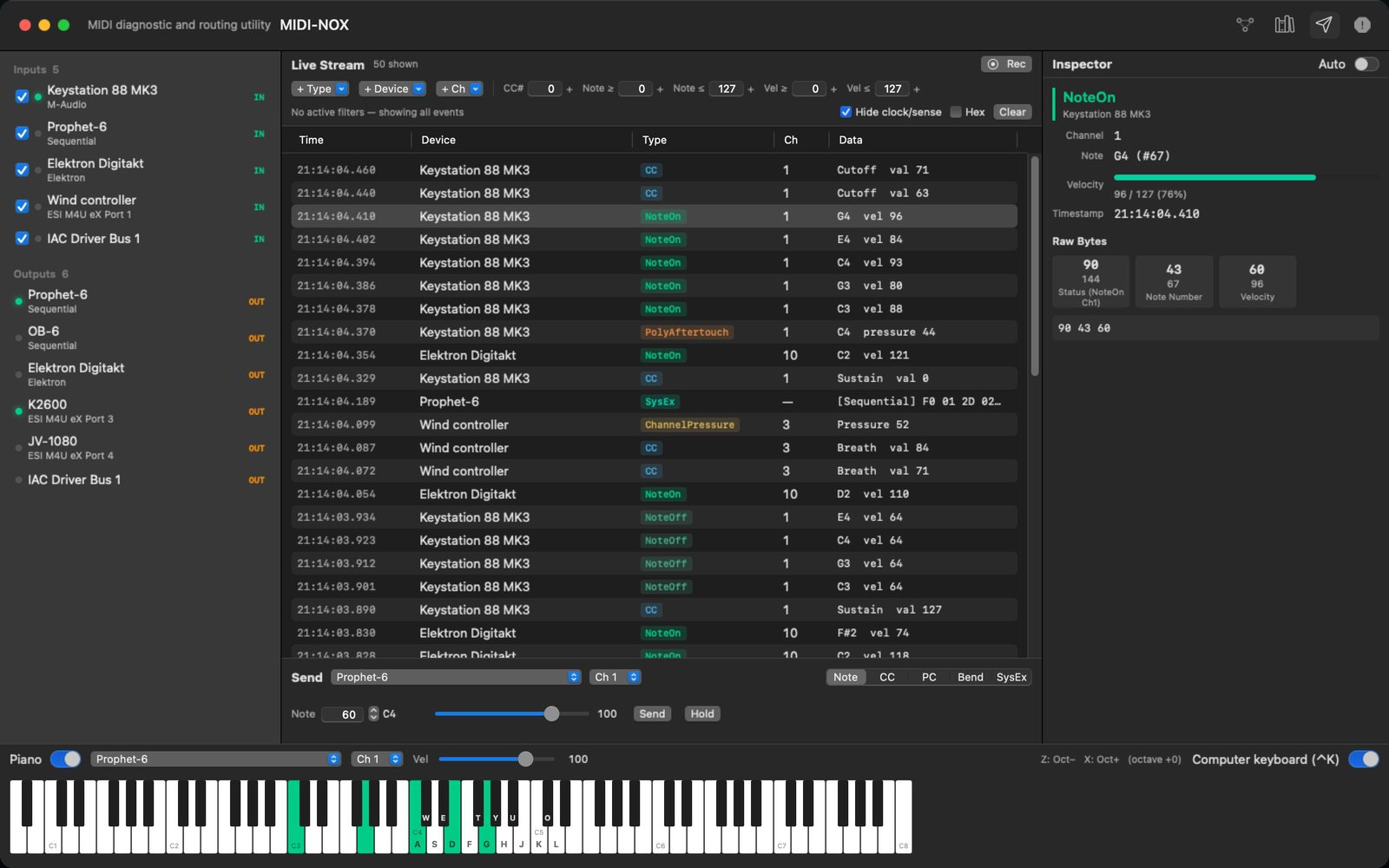
- Devices lists every input and output with an activity light. Untick an input to keep it out of the stream; it is still routed.
- Live stream shows incoming messages, newest at the top.
- Inspector explains the selected message.
- Piano plays to an output and lights up with incoming notes.
The toolbar opens Routing and the SysEx Librarian, shows or hides the Sender, and has PANIC, which sends All Notes Off and All Sound Off on every channel of every output. Use it when a note hangs.
03Live stream
Each row shows the time, the device (by the name you gave its port, if any), the message type, the channel and the decoded data, such as G4 vel 96 or Mod Wheel val 64. The stream keeps the latest 2,000 messages.
Filters
- + Type, + Device and + Ch add a filter chip. Chips of the same kind combine with OR: Type NoteOn and Type CC shows both.
- CC#, Note ≥, Note ≤, Vel ≥ and Vel ≤: type a value and press Return or +.
- Filters of different kinds combine with AND. Click a chip's ✕ to remove it, or Clear filters.
- Hide clock/sense (on by default) keeps MIDI Clock and Active Sensing out of the stream; they are still routed.
- Hex shows raw bytes instead of decoded values. Clear (⌘K) empties the stream.
Recording
Click Rec (⌘R) to record every incoming message; filters don't apply to recordings. Click Stop, then Save CSV… or Save MIDI…. The MIDI file is a Standard MIDI File (format 0, 120 BPM) and leaves out SysEx and realtime messages.
04Inspector
Click a message in the stream to inspect it: its type, device and channel, the decoded fields (note and velocity, controller and value, program, bend amount, SysEx manufacturer and length) and every raw byte with its decimal value and meaning. Turn on Auto to follow the newest message. The hex line at the bottom can be selected and copied.
05Routing
Open the routing window with the toolbar's Routing button or ⌘1. It has two views of the same routing.
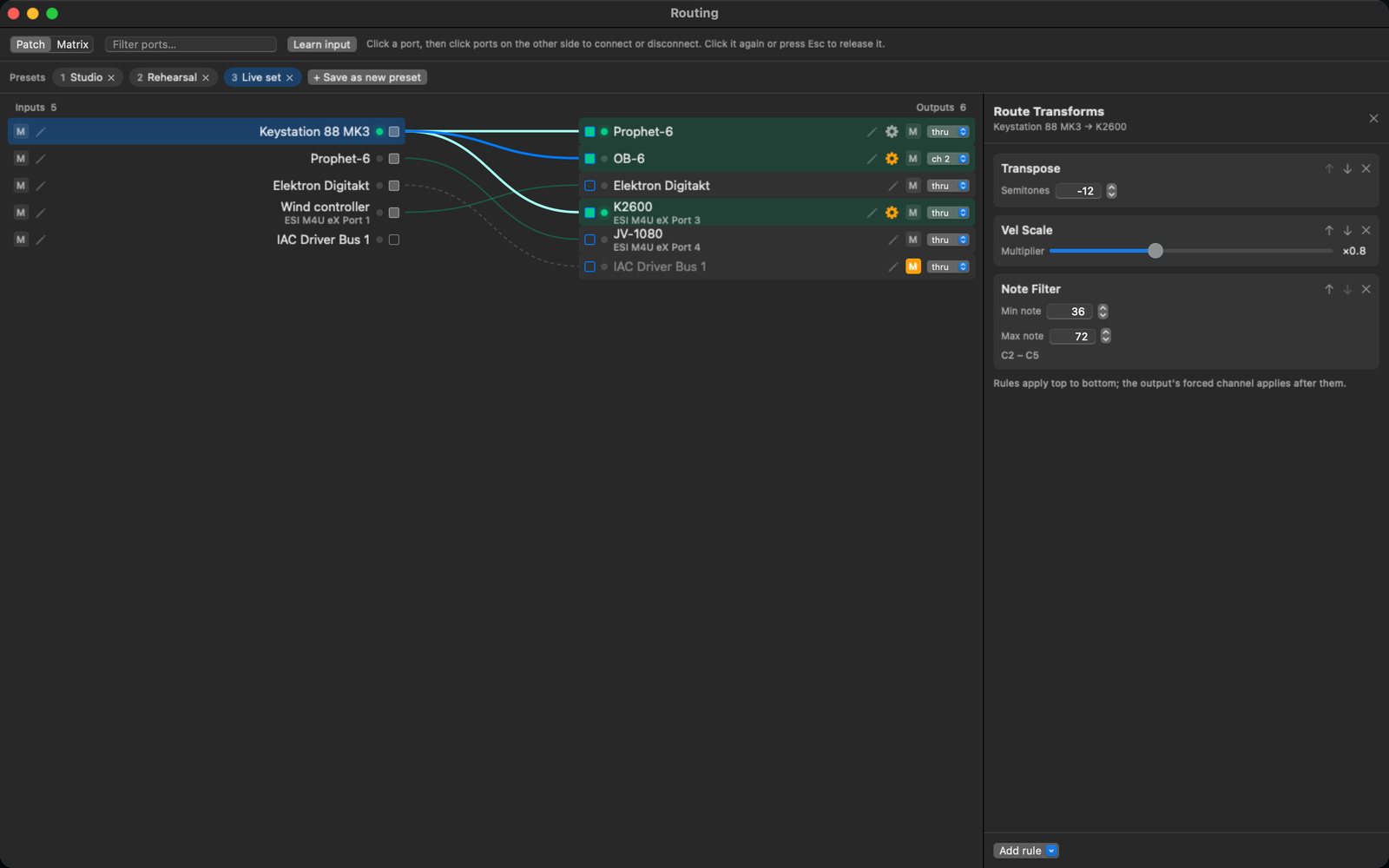
Patch view: inputs on the left, outputs on the right, and a line for every route. Click a port to select it, then click ports on the other side to connect or disconnect them. Click the selected port again, or press Esc, to release it.
Matrix view: inputs are rows and outputs are columns. Click a cell to connect or disconnect.
On every port
- ✎
- Name the device on the port, for example "K2600" instead of "ESI M4U eX Port 3". The name is used everywhere the port appears, with the real port name beside it.
- M
- Mute: the routes stay, but nothing is routed from or to the port. Muting sends All Notes Off to whatever the port was feeding, so notes don't hang.
- ch
- (outputs) Force every routed message to one channel. thru passes channels through unchanged.
- ⚙
- (on a connected route) Edit the route's transforms. The gear turns orange when it has some.
Learn input: click it, then play a key or move a control on a device. The Patch view selects, scrolls to and flashes the input it arrived on, ready for you to connect outputs. Filter ports narrows both views by port name or your name for it.
Routes to a device that is not connected are kept and start working again when it comes back.
06Transforms
Each route can change or filter messages on their way to the output. Rules apply from top to bottom; reorder them with the arrows. The output's forced channel applies after them.
| Rule | What it does |
|---|---|
| Transpose | Shifts notes by up to ±48 semitones. |
| Vel Scale | Multiplies note velocity, 0.1 to 2.0. |
| Vel Offset | Adds −127 to +127 to note velocity. |
| CC Remap | Turns one controller number into another. |
| Ch Force | Moves channel messages to one channel. |
| Note Filter | Passes only notes within a range — handy for keyboard splits. |
| Ch Filter | Passes only the channels you tick. |
| Block Types | Stops notes, CC, program changes, pitch bend, aftertouch, poly aftertouch, SysEx, clock or active sensing. |
Velocity rules never turn a note-off into a sounding note, so they can't cause hanging notes.
07Presets
A preset saves the whole routing — routes, transforms and forced output channels — under a name. Click + Save as new preset, then click a preset to switch to it. If the current routing isn't saved in any preset, MIDI-NOX asks before replacing it.
A • marks a preset that has changed since you loaded it, with a button to save the change. Right-click a preset to rename or delete it. Port mutes belong to the ports, not to presets, and are kept when you switch.
Presets find ports by their CoreMIDI ID first and by name second, and tell apart ports that share a name, so they still work after replugging and on another Mac with the same interfaces.
08Sender
Show the Sender with the toolbar button or ⌘3. Choose an output and channel, then:
- Note: Send plays a 200 ms note; Hold keeps it on until you click Release.
- CC: a controller number and value.
- PC: a program change, preceded by Bank Select MSB and LSB.
- Bend: pitch bend from −8192 to +8191; Zero recentres it.
- SysEx: type hex bytes from
F0toF7and send them, or send a whole.syxfile once without adding it to the library.
09Piano
Switch Piano on and choose an output, channel and velocity. Click or drag across the keys to play. Incoming notes light up the keys too. Choose 37, 49, 61, 76 or 88 keys in Settings.
Computer keyboard (⌃K): A W S E D F T G Y H U J K O L play an octave and a half from C4, and Z / X shift the octave. Keys are matched by position, so any keyboard layout plays the same notes from the same places, and the key caps on screen show your layout's letters.
10SysEx Librarian
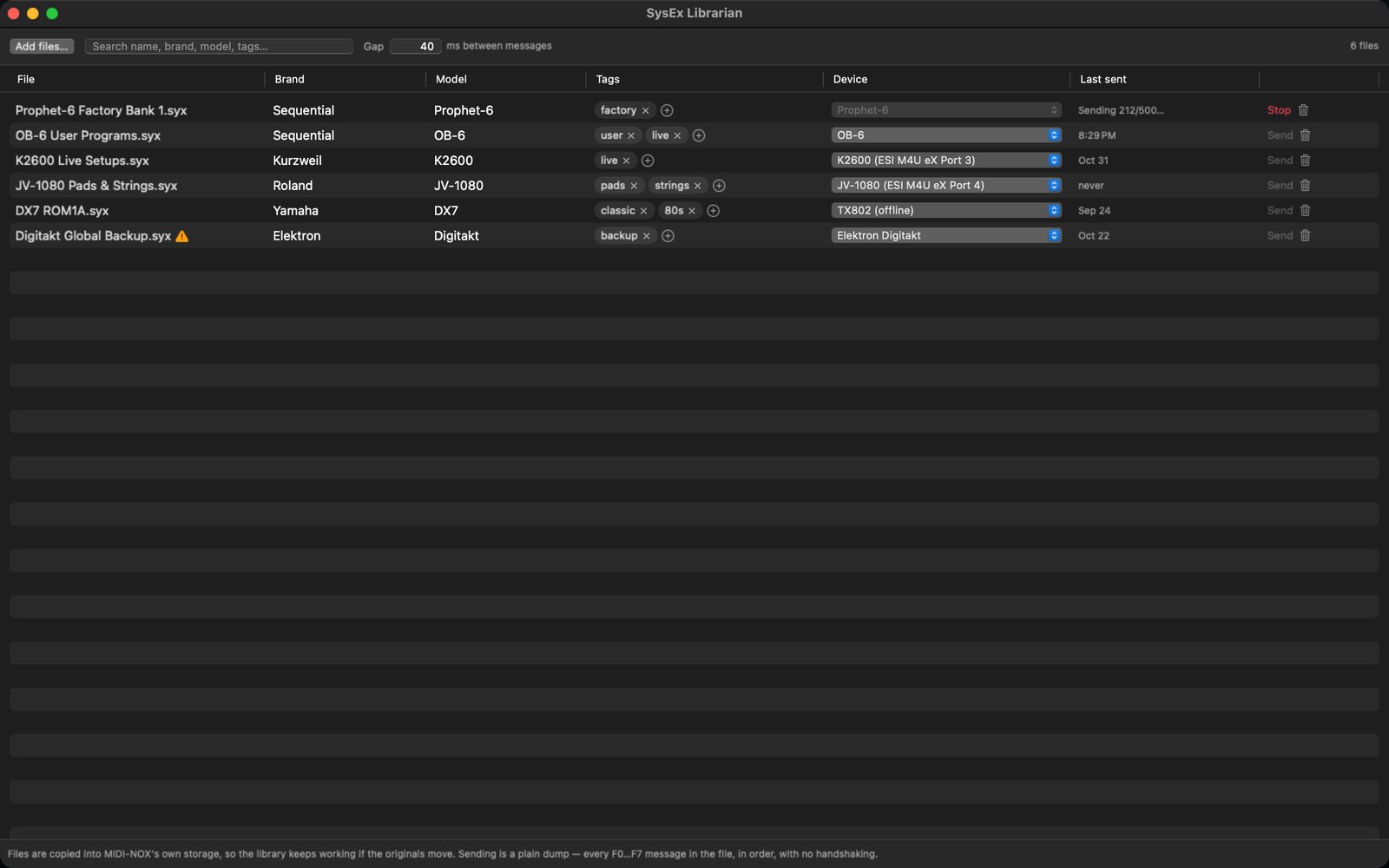
Open it with the toolbar's SysEx button or ⌘2. Add .syx files with Add files… or by dropping them on the window. Each file is copied into MIDI-NOX's own storage, so it keeps working if the original moves.
- Device: choose the output a file belongs to. It is remembered, so the next dump is one click on Send. A new file is aimed at the device you last sent to, or the only connected output.
- Brand and Model are read from the file's first message when possible. Click either to correct it.
- Tags (⊕) group files; click a tag to show only files with it. The search box matches names, brands, models and tags.
- Gap: milliseconds of silence between messages. Many older instruments drop messages that arrive while they are still storing the previous one; raise the gap if a dump arrives incomplete.
Sending is a plain dump: every complete F0…F7 message in the file, in order, with no handshaking. Malformed messages are skipped, and a ⚠ next to the file name says how many.
11Settings & data
Open Settings with ⌘,: appearance (match the system, dark or light), whether to show the piano and how many keys, how long to keep events in the stream, and Clear All Saved Data.
Everything is stored in ~/Library/Application Support/MIDI-NOX: routing, presets, port names, settings and the SysEx library. Nothing leaves your Mac; see the Privacy Policy.
12Keyboard shortcuts
- ⌘.
- PANIC — All Notes Off and All Sound Off everywhere
- ⌘1
- Routing window
- ⌘2
- SysEx Librarian
- ⌘3
- Show or hide the Sender
- ⌘R
- Start or stop recording
- ⌘K
- Clear the stream
- ⌃K
- Play the piano from the computer keyboard
- ⌘,
- Settings
- ⌘?
- Help
- Esc
- Release the selected port, or stop listening for Learn input